Online Booking Software: How to Set It Up Without the Back-and-Forth
How to let people book appointments with you directly, on your own terms, 24/7, without a single email exchange — a step-by-step guide to eezySchedule's online booking system
"Does Thursday afternoon work?" "Not for me, could we do next week?" "Next week's tricky, how about the week after?" If you've ever tried to book a single appointment with someone over email, you know how many messages it can take just to land on one mutually workable time. Multiply that by every client, candidate, or patient who needs time with you, and the email back-and-forth becomes a job in itself.
There's a second problem hiding behind the first one: you're only available to actually have that email or phone exchange during the hours you're working. Someone who thinks of booking you at 9pm, or over a weekend, either has to wait until you're reachable or the moment passes and they book someone else instead.
Online booking software fixes both problems at once. It gives people a link to a calendar of your actual availability, so they can pick a time and book it themselves — no email ping-pong, no waiting for a reply, no appointment slipping through the cracks because a message got buried — and they can do it any time, day or night, whether or not you're at your desk. It's become the standard way individuals and small teams — consultants, recruiters, project managers, wellness and medical practitioners, and anyone else taking appointments — handle online appointment booking.
Here's exactly how to set up this kind of online booking system in eezySchedule, start to finish.
The big picture, before the details
Setting up online appointment booking in eezySchedule follows one straightforward loop:
Each step builds on the one before it, and you can always come back and adjust an earlier step later — add more dates, create a second Booking Type, or generate another Booking Link for a different audience. For each Booking Type, once it's set up, most of these steps rarely need repeating; step 6 is the one you'll return to regularly as bookings arrive, and step 3 (adding more Booking Slots) is worth a periodic check so you don't run out of upcoming availability.
Step 1: Create a Booking Type
Bookings Setup page -> Booking Types tabA Booking Type lets you set up a series of appointment options in your calendar for people to choose from. Examples of Booking Types might be Sales Meetings, Tutorials, Client Feedback Meetings, or Lunch Appointments — whatever fits what you do. People access your online calendar using Booking Links and, crucially, when someone clicks a Booking Link to come and book you, they'll only see the appointment options that belong to that particular Booking Type — not your whole calendar.
Each Booking Type has its own settings, so you can offer several different kinds of appointment side by side without them interfering with each other.
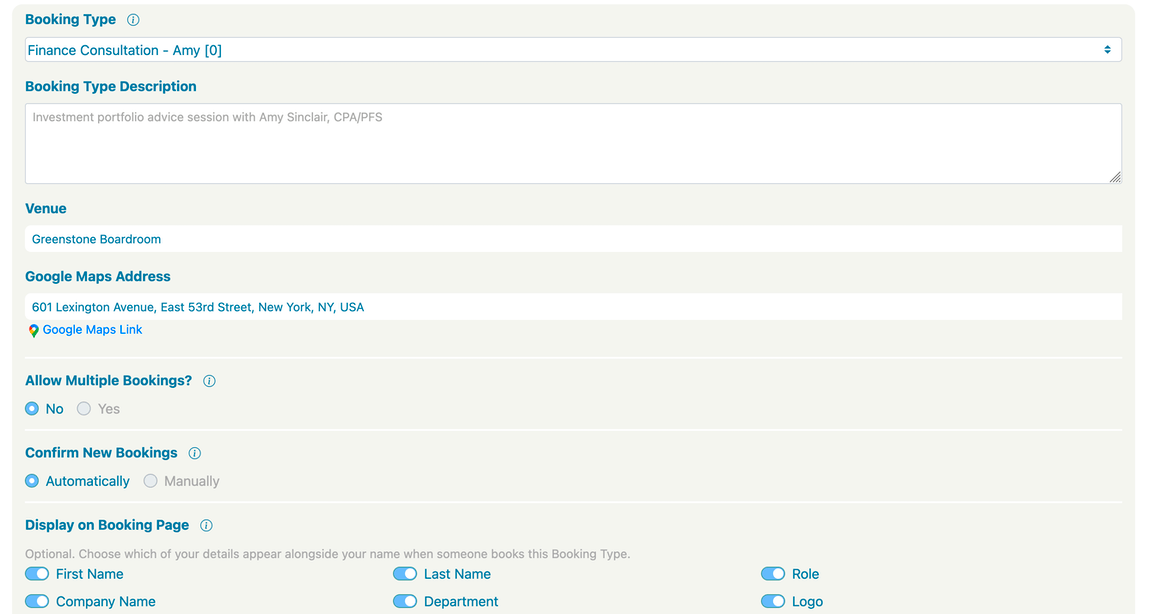
Setting one up takes a name (required) and a description (optional but worth adding), plus a handful of options:
- Venue and address — where the appointment happens, whether that's via something like Zoom, a phone call, or a physical address (added via Google Maps so it displays clearly to the person booking).
- Allow Multiple Bookings — let a single booker reserve more than one slot in one booking request, e.g. two consecutive 30-minute slots for a 60-minute session instead of being limited to one slot at a time. You control how many slots can be combined, and whether they must run back-to-back or can be chosen more freely across your available times — useful if you want to offer flexible-length appointments without creating a separate Booking Type for every possible duration.
- Automatic or manual acceptance — decide whether a booking is confirmed the moment someone books it, or whether it lands in your queue for you to approve first. Automatic acceptance suits most day-to-day appointments; manual acceptance is there for anyone who wants a final say before a booking is locked in — handy if you want to screen requests or simply prefer to confirm each one yourself.
- What the booker sees about you — choose which of your own details appear on the booking page: first name, last name, role, department, company name, and logo. Show as much or as little as makes sense for that particular Booking Type.
You can come back and edit a Booking Type at any time, so there's no need to get every setting perfect on the first pass.
Step 2: Choose dates on your calendar
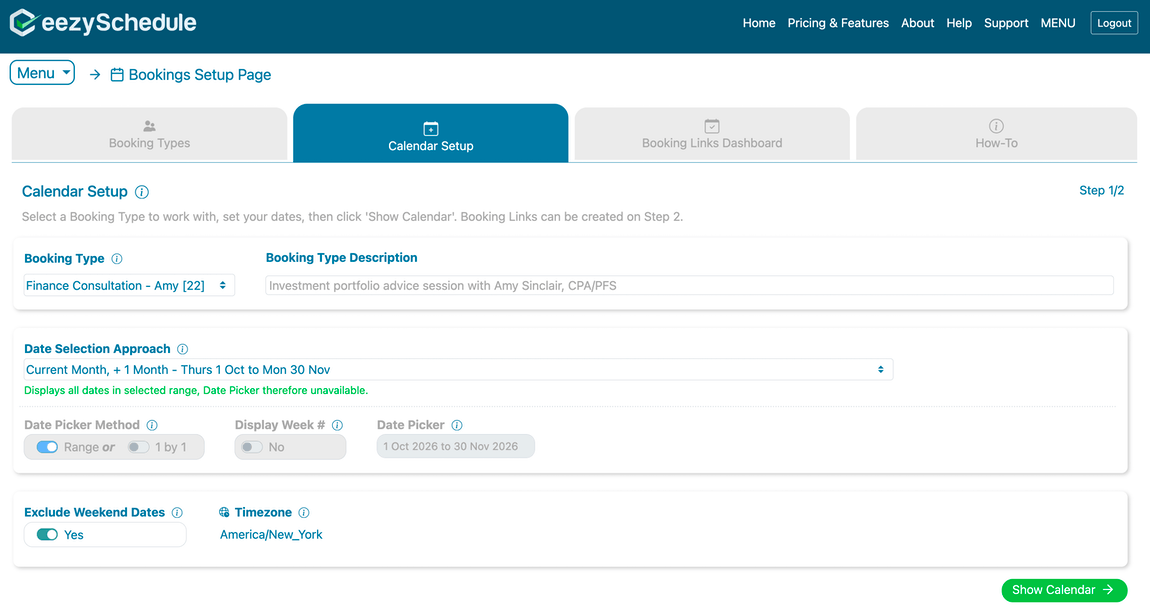
Bookings Setup page -> Calendar Setup tab (step 1 of 2)With a Booking Type created, the next step is deciding which dates you want to make available for it and this is handled on the same page by clicking to the Calendar Setup tab and, to kick things off, selecting your targeted Booking Type.
You then pick dates either by hand (range selection, or choosing individual dates one at a time) or use a preset period like "Current Week" or "Current Month + 1 Month," which keeps rolling forward automatically so you don't have to keep coming back to extend it. Then click 'Show Calendar' to move to the tab's step 2.
Step 3: Add Booking Slots to those dates
Bookings Setup page -> Calendar Setup tab (step 2 of 2)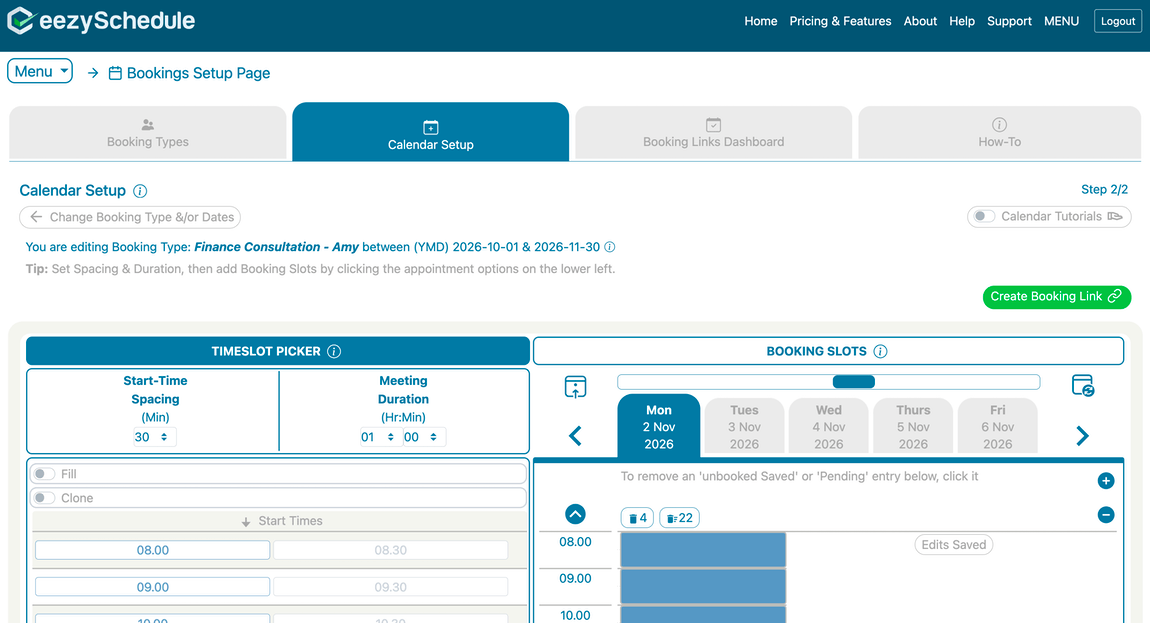
With your dates chosen, the next step is adding actual bookable times — Booking Slots — on your online calendar and this is also done on the Calendar Setup tab, this time in Step 2.
First-off, set your meeting / appointment 'duration' and the meeting 'start-time spacing' values, then build out the actual slots (the screenshot shows meetings of 1 hour in duration with start times selectable every 30 minutes, e.g. starting at 08.00 or 08.30 etc). Two features make this fast:
- Fill — click one start time and the rest of the day fills in automatically, back-to-back, with slots of your chosen length.
- Clone — add a Booking Slot to one day and see it automatically appear on every other date you've selected, so you only need to select a specific time once for it to appear on all dates.
Four, short, walkthrough tutorials are accessible on this page that cover the interface in more depth. These are especially useful on your first time through.
Step 4: Create a Booking Link and share it
Booking Links are created on Step 2 of the Calendar Setup tabOnce your Booking Slots are saved, you can generate a Booking Link — the URL you actually share with people so they can book you.
This is one of the more distinctive parts of how eezySchedule's booking system works: a Booking Link doesn't expose your whole calendar. It only shows the specific dates and the specific Booking Type(s) you chose when you created that link. So if you've got "Open Consultations" running every morning and "Client Feedback Sessions" every afternoon, you can create a link that only reveals the Open Consultation slots — the feedback sessions simply don't exist as far as that link's visitors are concerned. Create as many Booking Links as you like, each scoped to exactly the Booking Type that you want your audience to see. You can even combine multiple Booking Types into a single Booking Link, if that suits how you want to present your availability.
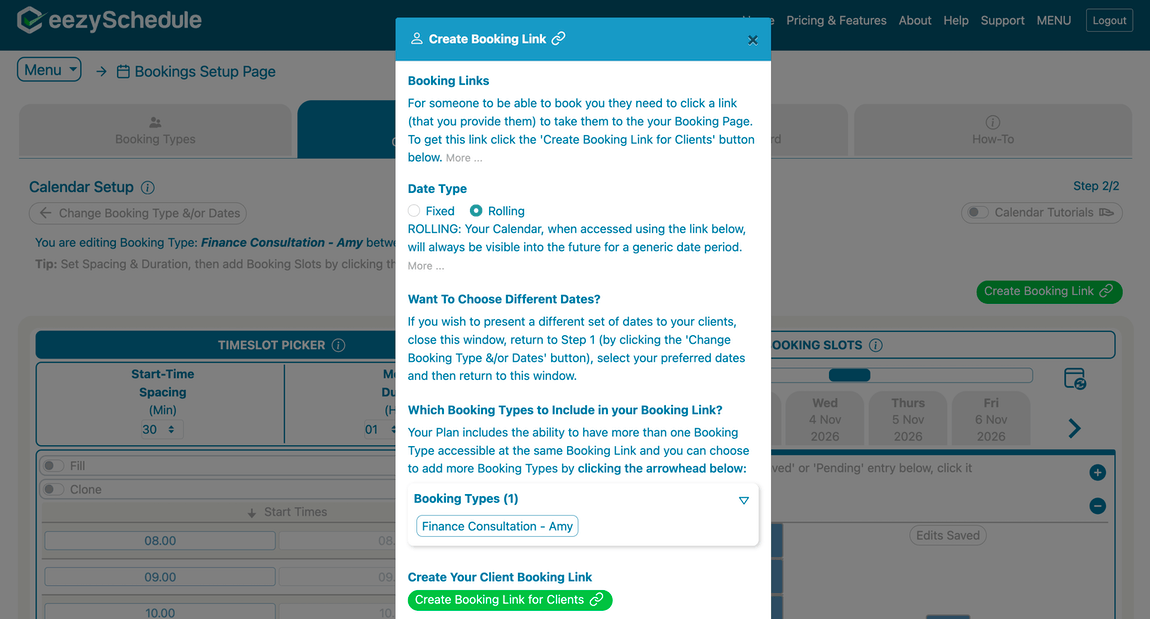
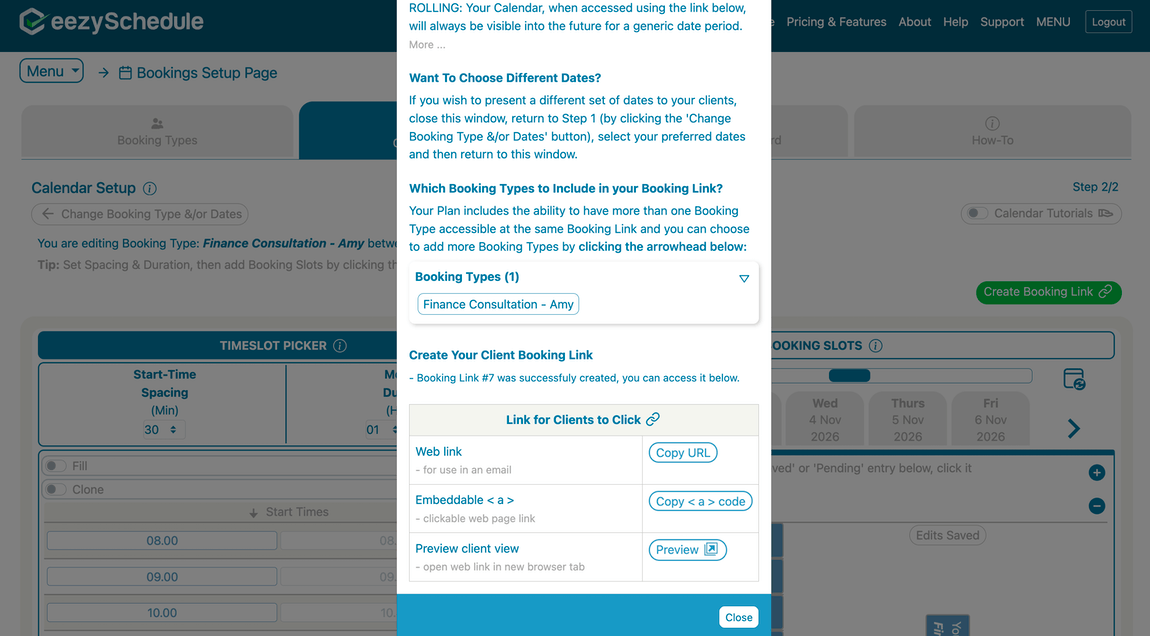
If you built your dates around a rolling preset period (like "Current Month + 1 Month"), your Booking Link can keep rolling forward with it automatically, so you're not stuck regenerating a fresh link every few weeks — or you can fix it to a specific date range if that suits your use case better.
Once a Booking Link is created, you can preview it instantly in a new tab to see exactly what a visitor will see, then share it by email, on your website, or on social media — the embeddable link code is available to copy directly, alongside the plain URL. This is the core of how online booking software turns your availability into something people can act on immediately, instead of just a calendar only you can see.
Step 5: Someone books a slot
The 'Make-A-Booking' page, accessed when you click 'Preview' in previous screenshot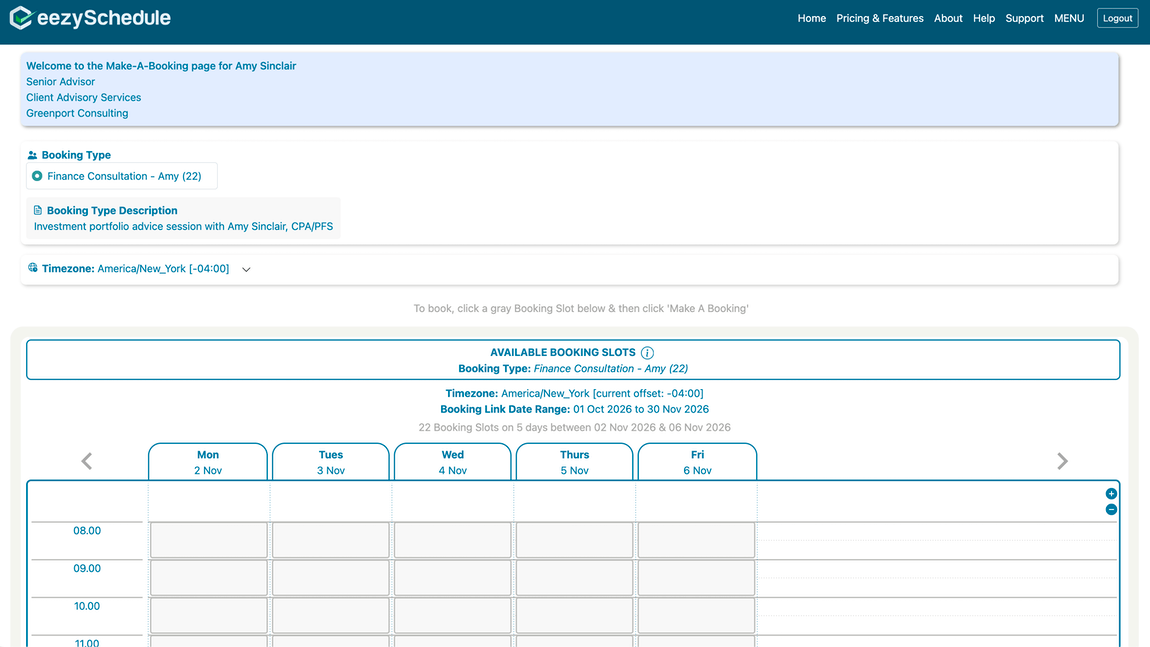
A visitor who opens your Booking Link sees only the dates and appointment types that link was set up to show. They can adjust the displayed timezone if theirs is different from yours, then pick a slot and book it.
Both of you get an email confirming the booking. If the Booking Type was set to accept bookings automatically, that email comes with a calendar file (.ics) attached, ready to add directly into Google Calendar, Apple Calendar, Outlook, or whatever you already use. If it was set to manual booking acceptance instead, that calendar file only goes out once you've approved the booking yourself (on your My Bookings page).
Step 6: Managing bookings as they come in
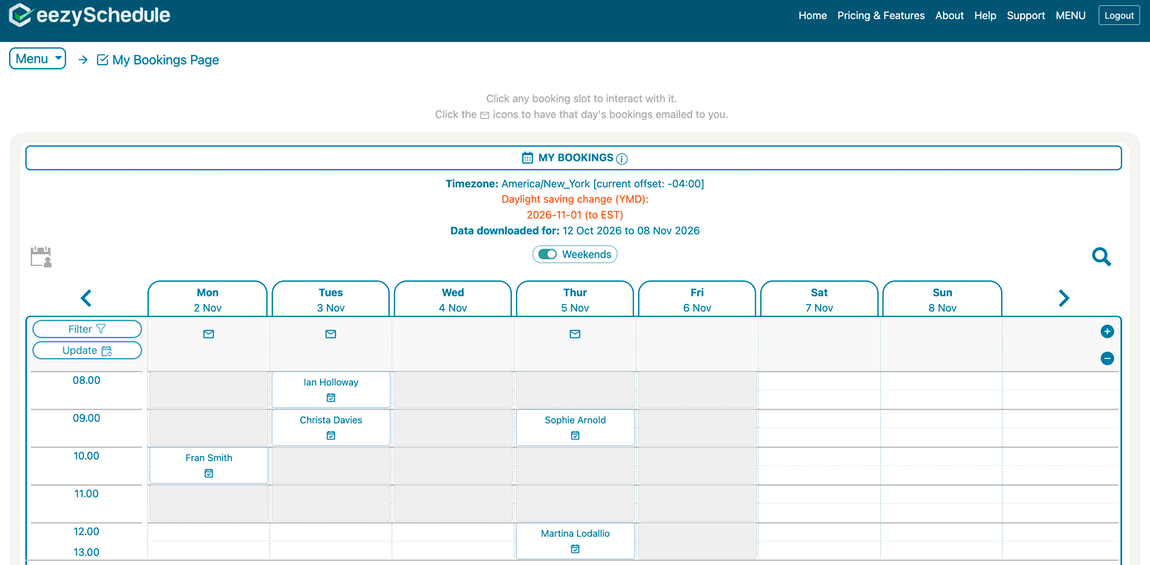
My Bookings pageEverything about your ongoing bookings lives on the My Bookings page — your own online calendar — where you can scroll forward and backward, week by week, to see which of your Booking Slots have been taken and which are still open.
From there you can:
- Approve or decline bookings awaiting manual acceptance
- Email anyone who's booked you, directly from the dashboard
- Cancel a booking if plans change
- Search through your bookings
- Run a live update to pull in the latest activity
- Get an email summary of a particular day's bookings
This is the part of online appointment booking that pays off the setup work: once your Booking Link is out there, bookings arrive on your calendar without you lifting a finger for each one.
If you've created more than one Booking Link, the Booking Links Dashboard (accessible also as a tab on the Bookings Setup page) gives you a single place to see all of them in one place — including simple, at-a-glance indicators, for whether a link has had any visits in the last 30 days, and whether it's running low on upcoming Booking Slots and needs fresh ones added.
That's it!
Create a Booking Type, add your availability as Booking Slots, generate a Booking Link scoped to exactly what you want people to see, and share it. From there, bookings land directly on your calendar — automatically or with your approval, your choice — without a single email going back and forth to get there. And people are able to submit bookings to you 24/7, not only when you have someone available to answer a call or email.
Written by the eezySchedule team.