How to Schedule a Group Meeting
Why group scheduling goes wrong, and a step-by-step way to fix it
Everyone's done the email thread. "Does Tuesday work for everyone?" Three people reply yes. One says "mostly, but could we do Wednesday instead?" Someone else hasn't replied at all. By the time you've chased the last response, the original Tuesday slot has filled up with something else, and you're starting the thread over.
The usual advice — "just send a calendar invite" — only works when you already know a time that suits everyone, which is rarely the actual problem. The real difficulty with group scheduling is coordination: finding out what a handful of different people can actually do, without that discovery process itself eating up more time than the meeting will. A few things make this worse than it needs to be:
- Asking one person at a time instead of the whole group at once. Every reply changes the picture, so a sequential thread means re-checking everyone's availability each time someone new weighs in.
- Offering too few options. One proposed time either works or it doesn't — there's no room for someone to say "not that one, but I'm free an hour later."
- Offering too many options without a way to see the overlap. The opposite problem: a long list of possible times with no easy way to spot which one actually has the most people free.
- Timezones. If anyone involved isn't in the same one — "3pm" means something different to everyone, and that rarely gets caught until someone shows up at the wrong time.
- Different companies / remote workers. It's often not the case that everyone invited works at the same company or, even if they do, that you'll be able to see them in person to ask, so coordinating responses becomes a major time burden. Even if you've got someone to support you, the same challenges face them too, so handing the task off doesn't always solve the underlying problems of group scheduling.
A meeting poll solves the coordination problem directly: propose a set of time options once, let everyone vote in parallel rather than in sequence, and the overlap becomes obvious without anyone having to mentally cross-reference five different email replies.
Here's exactly how to set one up in eezySchedule, start to finish.
Step 1: Set the meeting details and possible dates
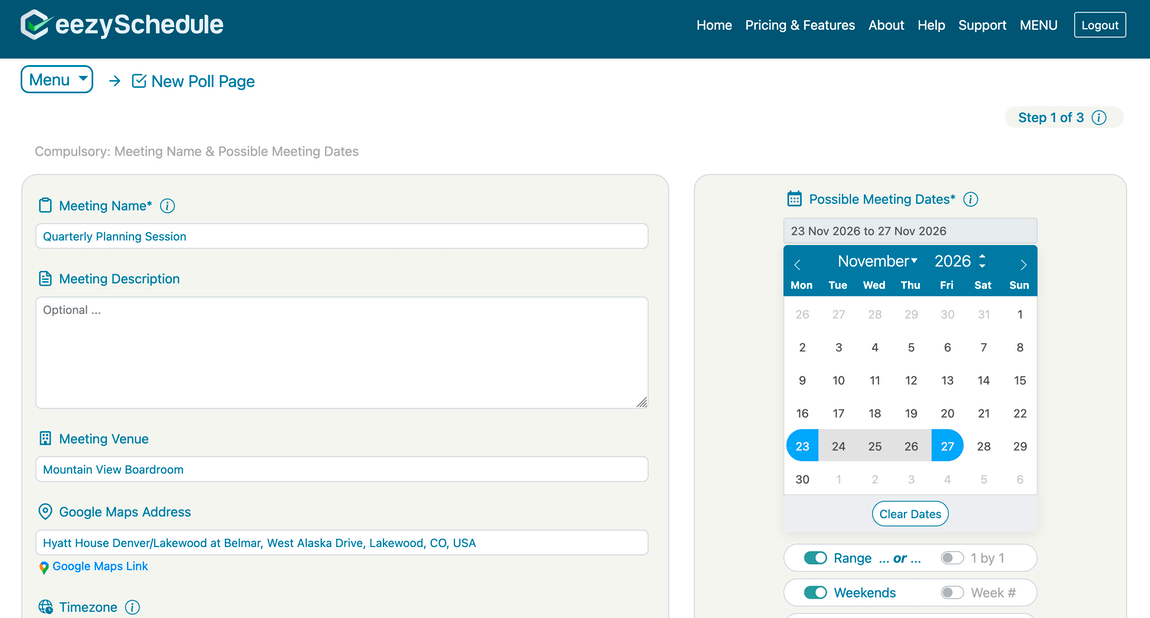
Start a new poll from the Menu page. The first step asks for the basics: a meeting name (the only required field), an optional description, venue, and address, plus the dates you'd like to offer as options.
The date picker supports two ways of choosing dates:
- Range mode — click a start date, then an end date, and everything between gets selected automatically, or
- 1 by 1 mode — hand-pick individual, non-consecutive dates — useful if, say, you only want Mondays and Thursdays over the next few weeks rather than a solid block.
Step 2: Add timeslots to each date
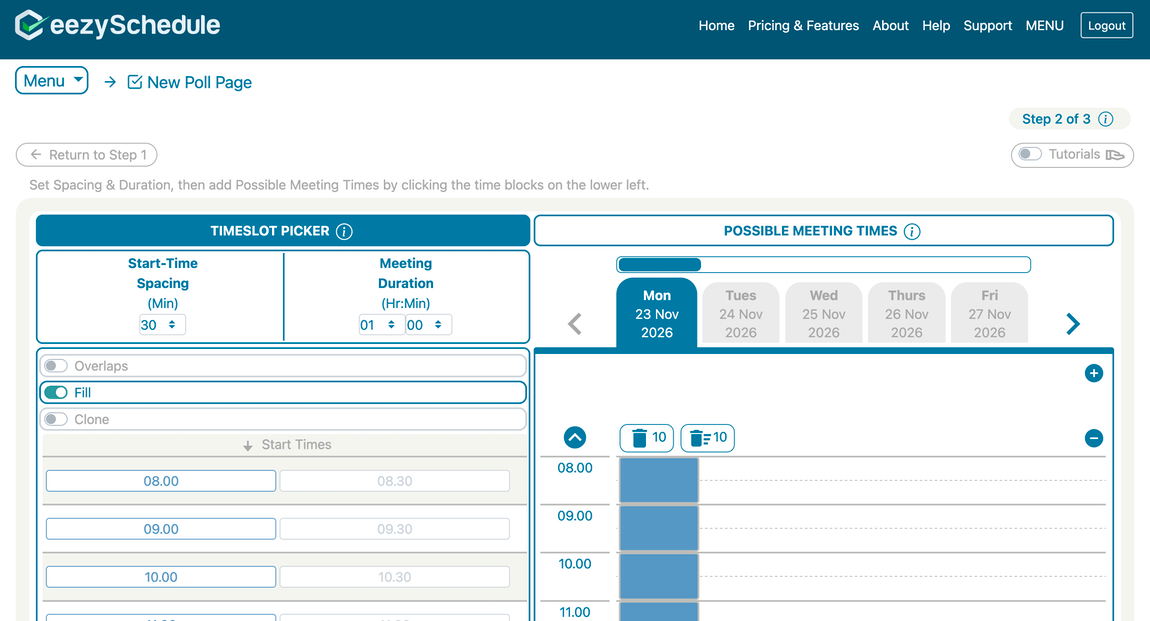
Once your dates are set, step 2 is where you decide what times are actually on offer for each date. Set the spacing of the meeting start-times (e.g. every 30 minutes) as well as a meeting duration, then build out the available slots.
With eezySchedule, two features make this fast rather than tedious:
- Fill — turn this on and click a single start time (say, 08:00), and the rest of that day fills in automatically with back-to-back slots of your chosen duration, all the way to the end of the day. One click instead of adding each slot by hand.
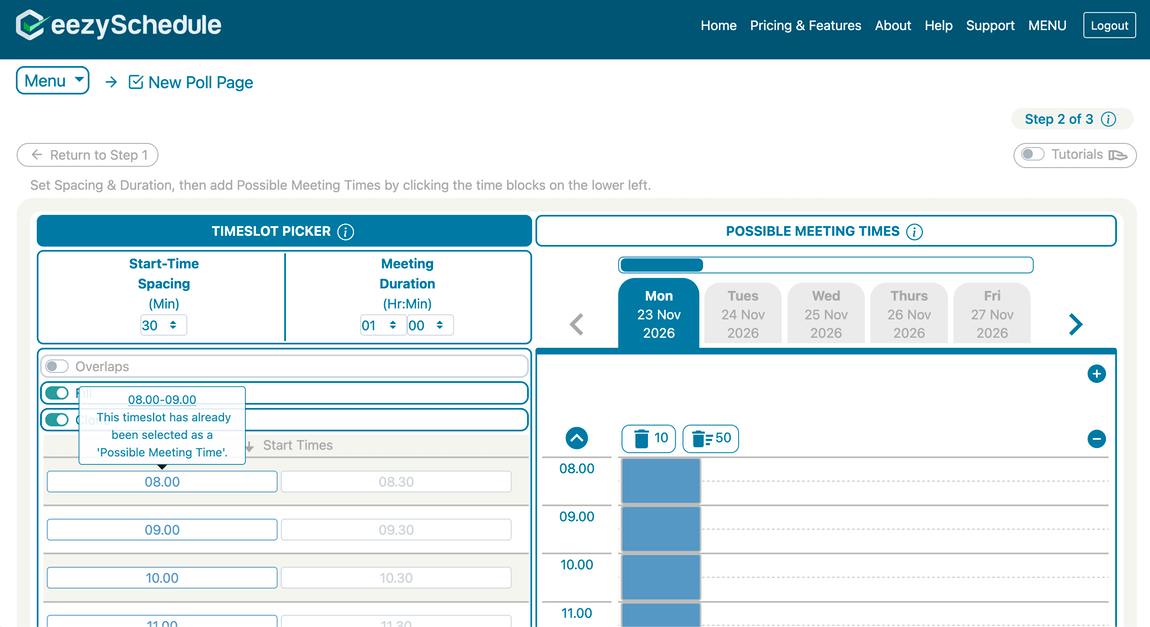
- Clone — turn this on alongside Fill, and whatever you just set up for one date gets copied across every other date you selected in step 1. Set your working hours once, apply it to five days in a couple of clicks.
Turn on both Fill and Clone together, and a single day's worth of slots — set up once — is copied straight across every other date you selected in Step 1, so you're not repeating the same setup for each day individually.
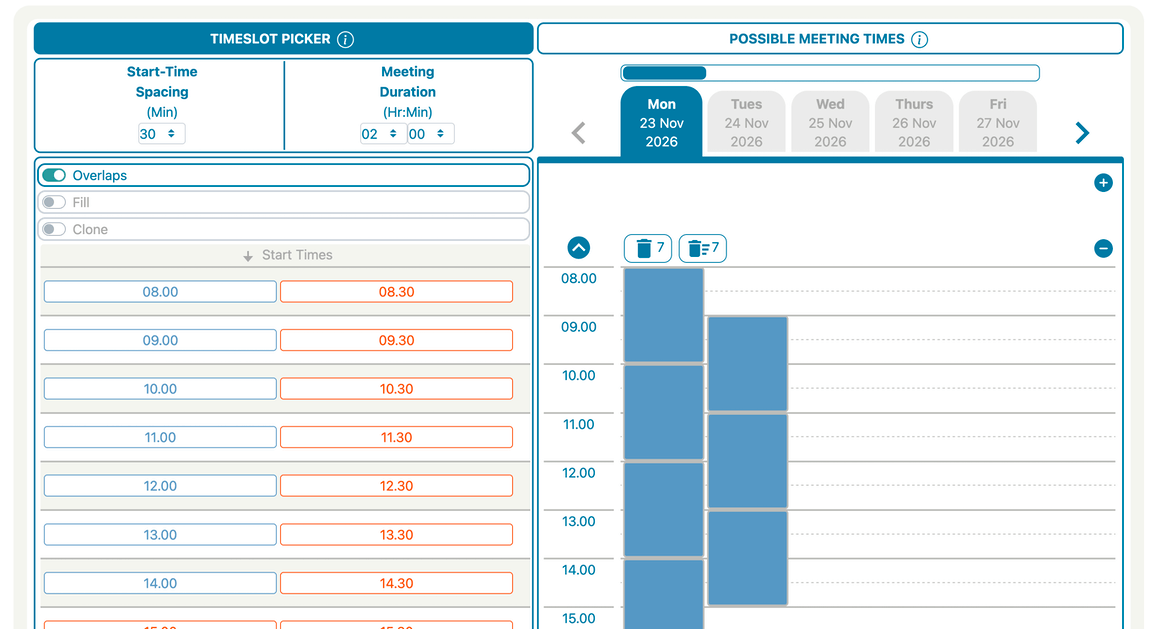
Overlapping timeslots. Many scheduling-poll tools only let you offer back-to-back blocks — 10:00–12:00, then 12:00–14:00, and so on, with no overlap between them. eezySchedule lets you offer overlapping options in the same poll: e.g. 10:00–12:00 and 11:00–13:00 can both be live choices at once, shown side by side rather than one replacing the other. That matters more than it might sound — it means you're not forcing voters into a handful of rigid blocks, but giving them a genuinely rich set of options to find what actually suits them, and it often surfaces a workable time faster than a poll built only from non-overlapping slots. The longer the meeting duration, the more important this becomes.
To add an overlapping timeslot, switch on the Overlaps toggle at the top of the Timeslot Picker first — once 'on', the timeslot picker then allows you to select timeslots that overlap.
Step 3: Set poll options and decide what voters see
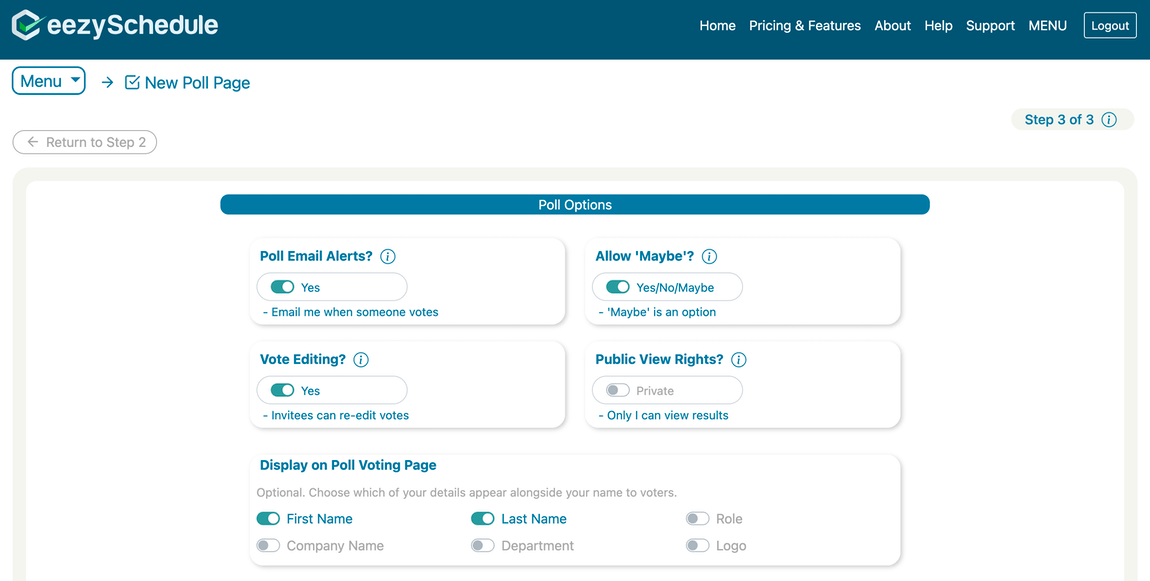
The last step is about how the poll behaves and what information voters see about you as the organiser.
A handful of toggles control the mechanics:
- Poll Email Alerts — get an email every time someone votes
- Allow 'Maybe' — let voters respond with a tentative "maybe" alongside yes/no
- Vote Editing — let voters come back later and change their response, rather than locking it in the moment they submit — this allows people to ensure that their responses are always up to date
- Public View Rights — keep results private (only you can see them) or make them public to anyone with the link
Below that, Step 3 has a separate section that lets you choose exactly which of your own details — first name, last name, role, company name, department, logo — appear on the voting page itself, so voters know who they're responding to without you having to over-share.
Publishing: get a link, or email your invitees directly
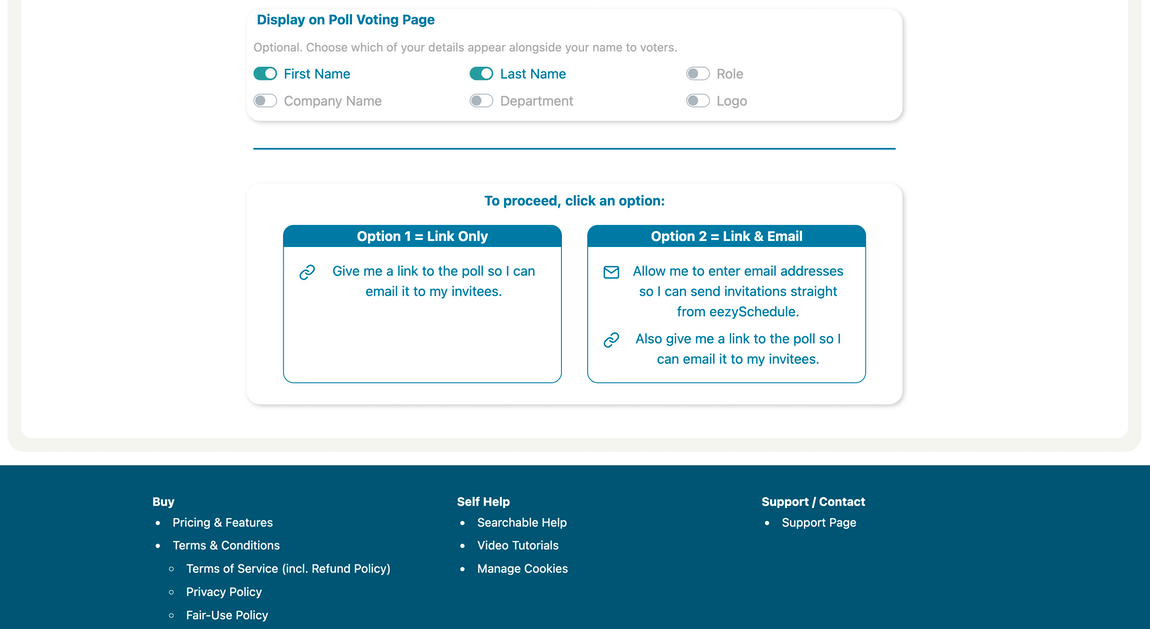
Once the poll is set up, you choose how to send it out:
- Option 1 — Link Only: get a shareable link to the poll, which you can paste into an email, a chat message, or anywhere else yourself.
- Option 2 — Link & Email: enter your invitees' email addresses directly and let eezySchedule send the invitations for you, as well as giving you the link.
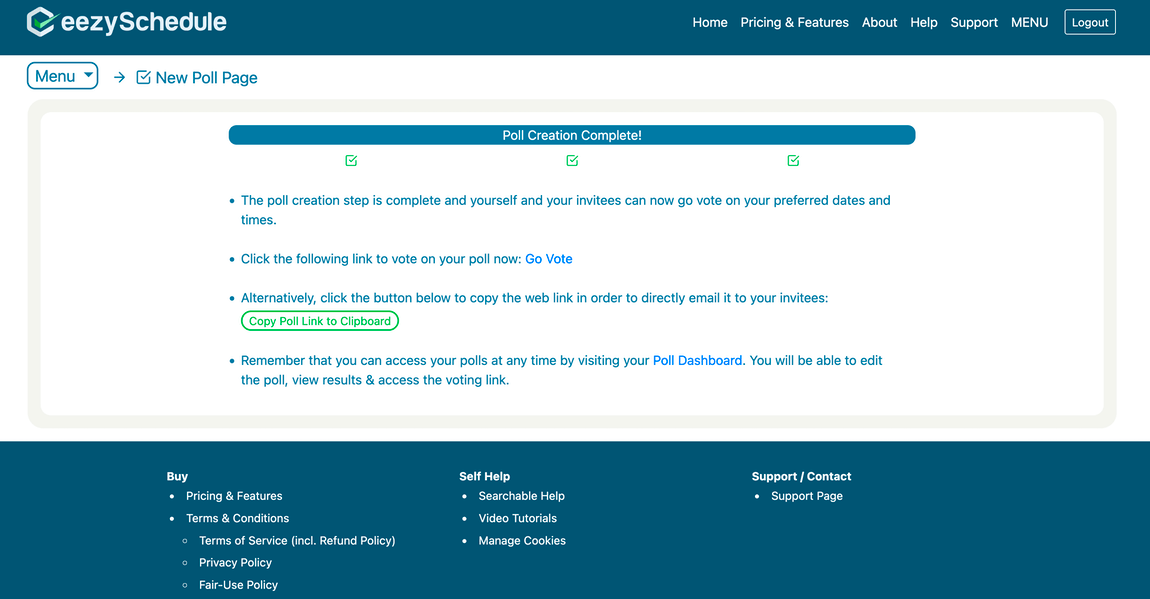
Either way, as soon as the poll is created you'll land on a confirmation screen with a direct "Go Vote" link and a one-click "Copy Poll Link to Clipboard" button, ready to share.
Managing the poll after it's live
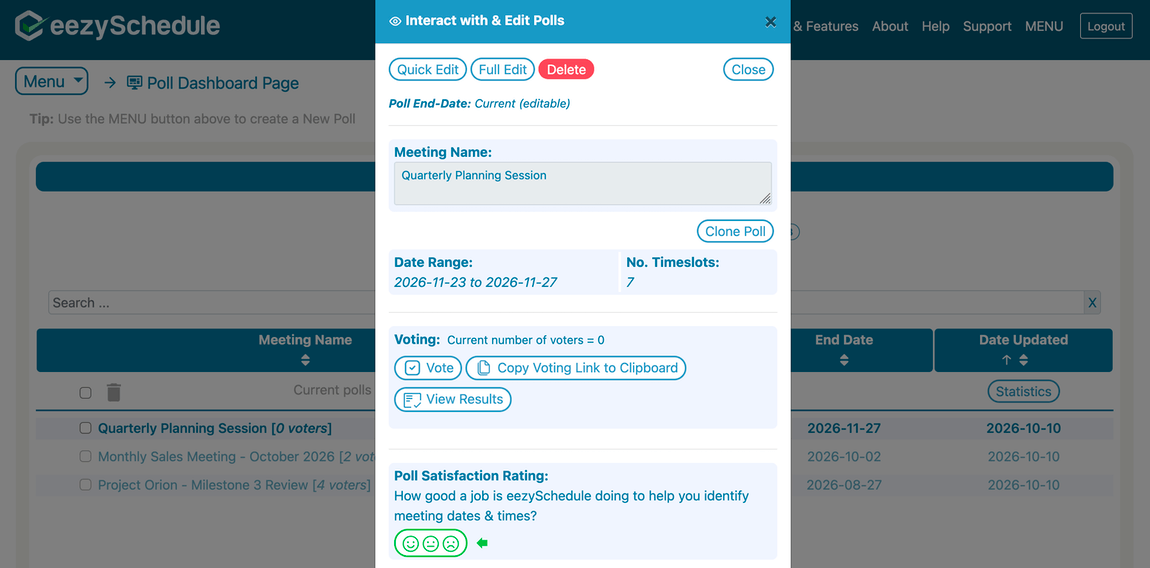
A poll isn't a one-and-done thing — you'll likely want to check in on it, tweak it, or follow up with voters and this is where eezySchedule is especially powerful. All of that happens from the Poll Dashboard, where every poll you've created is listed and searchable.
Click into any poll from there and you get a full set of management options in one place:
- Quick Edit or Full Edit — adjust poll details, from a small tweak to a complete rebuild of the options
- Clone Poll — reuse this poll's setup as the starting point for a new one, handy for meetings that repeat
- Vote — jump straight to the voting page yourself
- Copy Voting Link to Clipboard — grab the link again any time, without digging through old emails
- View Results — see how everyone has voted, by date and timeslot
- Email Voters — message everyone who's responded, directly from the dashboard, once the poll has at least one vote
Viewing the results
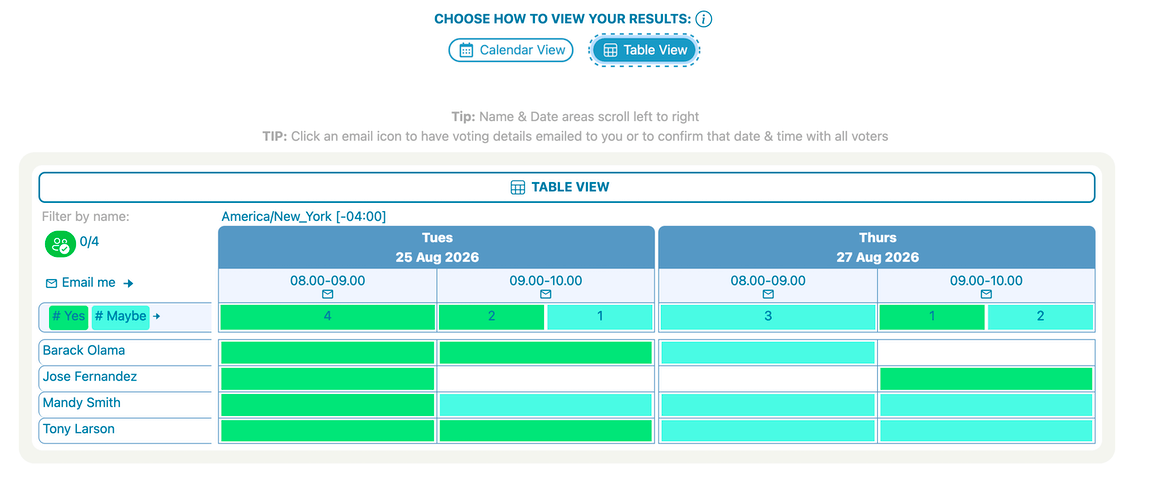
Click "View Results" from the Poll Dashboard and you can see exactly how everyone has voted, in whichever format suits you best — a table view or a calendar view. Both show the same information, it's just a matter of preference - select the one that works best for you.
You can switch to whichever timezone you prefer while reviewing results, so the times on-screen match what makes sense to you, not necessarily the timezone the poll was originally created in.
In table view, you'll see attendees listed against each date and timeslot, showing how each person voted — Yes, Maybe, or No. You can choose your preferred timeslot by seeing which are the most popular slots and can also use the Filter by Name option to have it highlight timeslots where a selected person or persons are able to attend. Hence you can quickly identify the best time for when key attendees are available.
Clicking the email icon of a timeslot gives you options to email yourself how everyone voted for that slot and you can also directly email all voters with an appointment email that they can accept into their calendars.
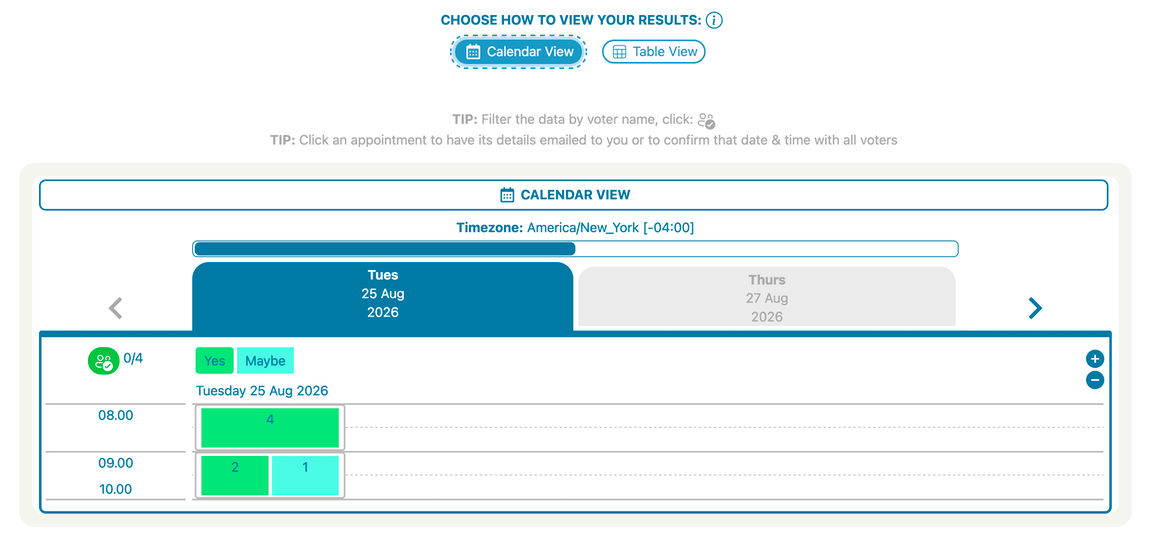
Calendar view shows the same results laid out as a calendar instead of a table — the same underlying information, just presented differently for anyone who finds that easier to read at a glance. By hovering your mouse over a timeslot you will see how everyone voted (Yes / No / Maybe) and can also email yourself the voting information or directly email an appointment file to all voters for the selected date & time.
That's it
Three steps — meeting details, timeslots, poll options — and your group has everything they need to find a time that works, without the sequential back-and-forth thread, the too-few-options dead-end, or the timezone mix-up. Everyone votes once and the best time to meet becomes clear, whether that's the timeslot with the most responses or the timeslot where that mission-critical person will be in attendance. And with such a capable set of options to manage your polls after creation, you'll have full control of the poll throughout its lifecycle.
Written by the eezySchedule team.